Share-to-Fedi
Share to Fedi JS
[ GO DIRECTLY TO BUTTON BUILDER –> ]
There are literally THOUSANDS of different servers, or “instances”, running dozens of social media platforms that make up the Fediverse. Most of them are “federated” with each other, and other platforms that support the AcitvityPub protocol, because the entire thing is decentralized by design.
But that means you have no way to guess which server any visitor to your website might be using. So, before they can share anything to their account you have to FIRST ask them which server they use. That’s primarily what this “Share to Fedi” script does. It lets you share some link somewhere.
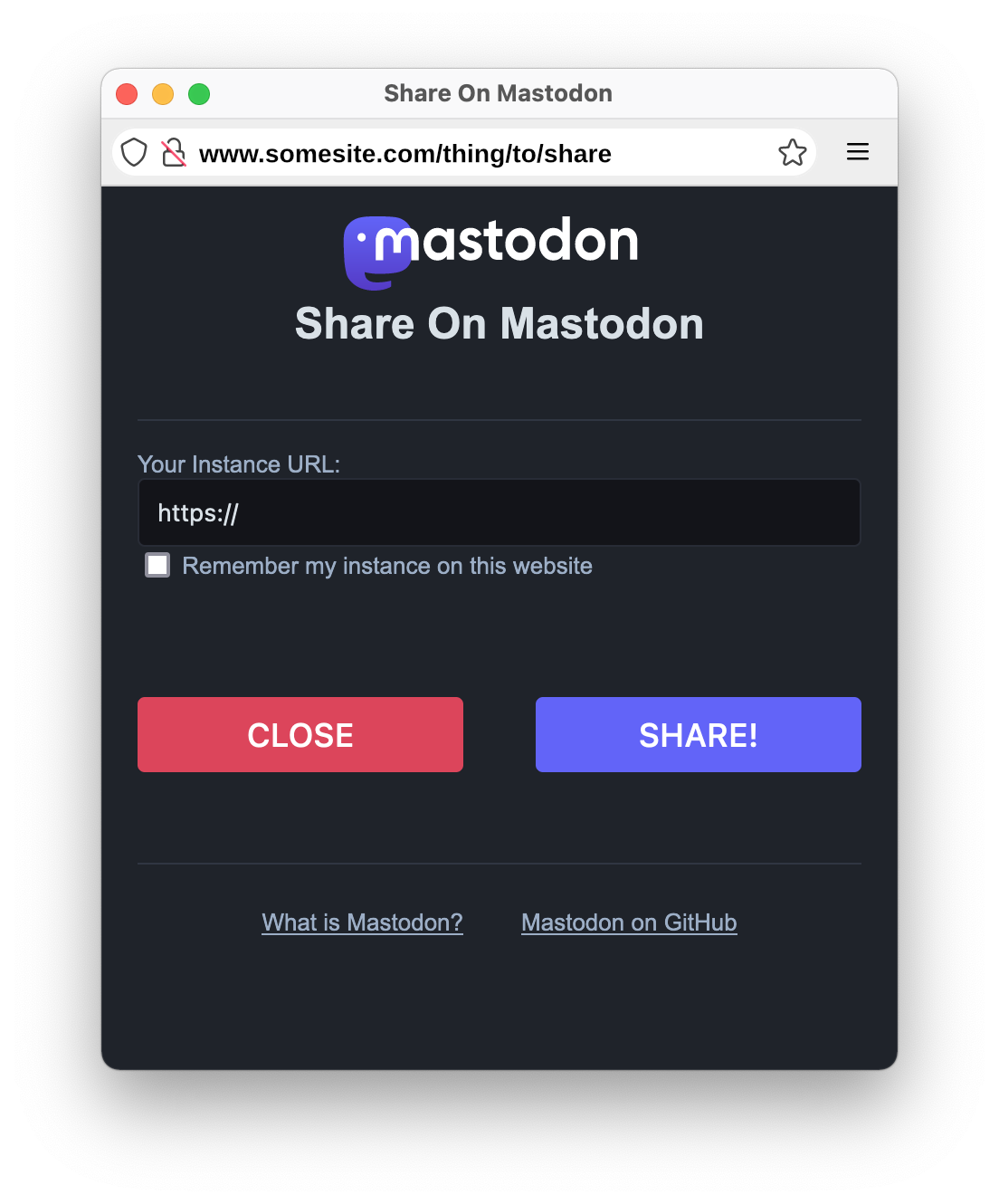
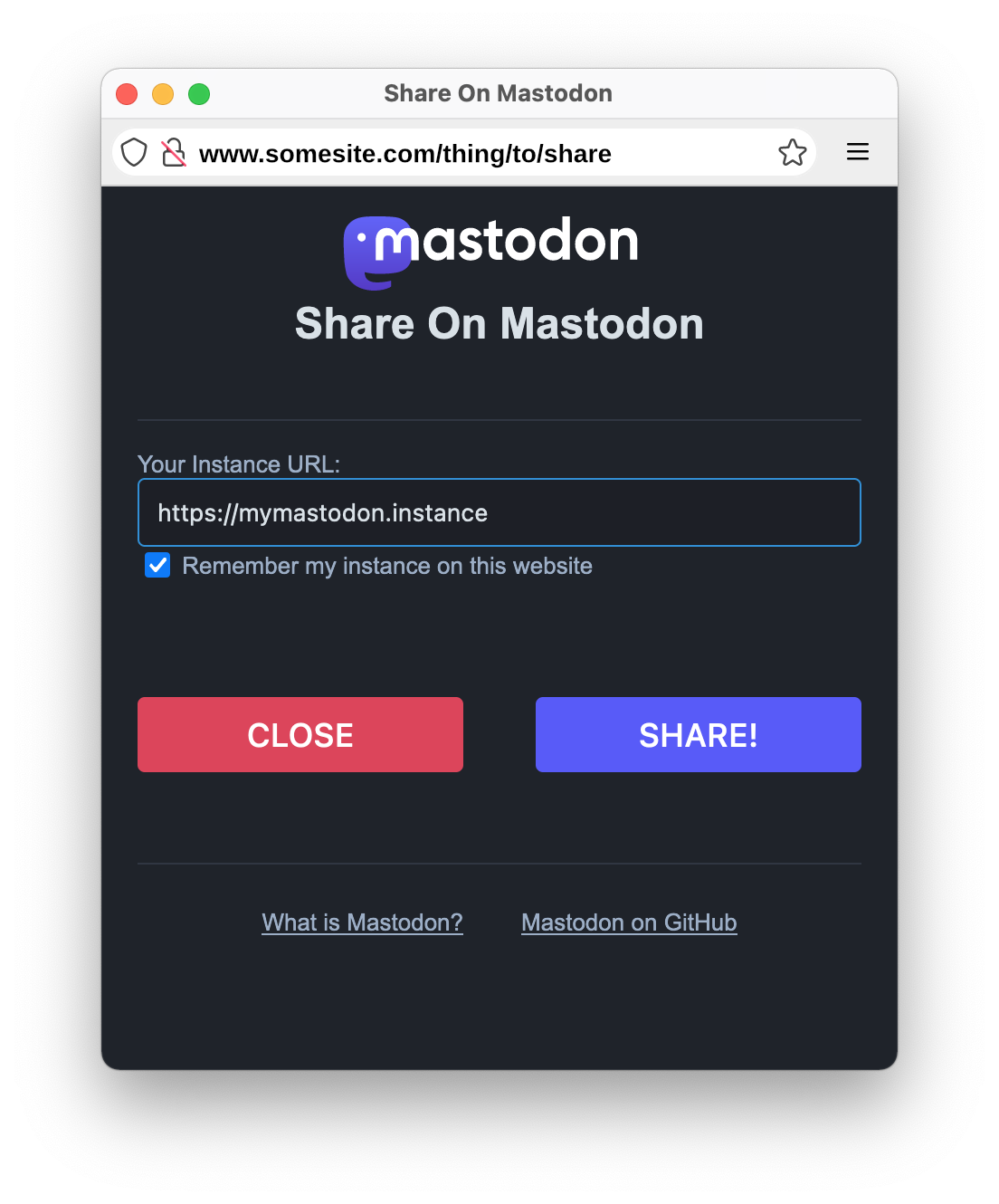
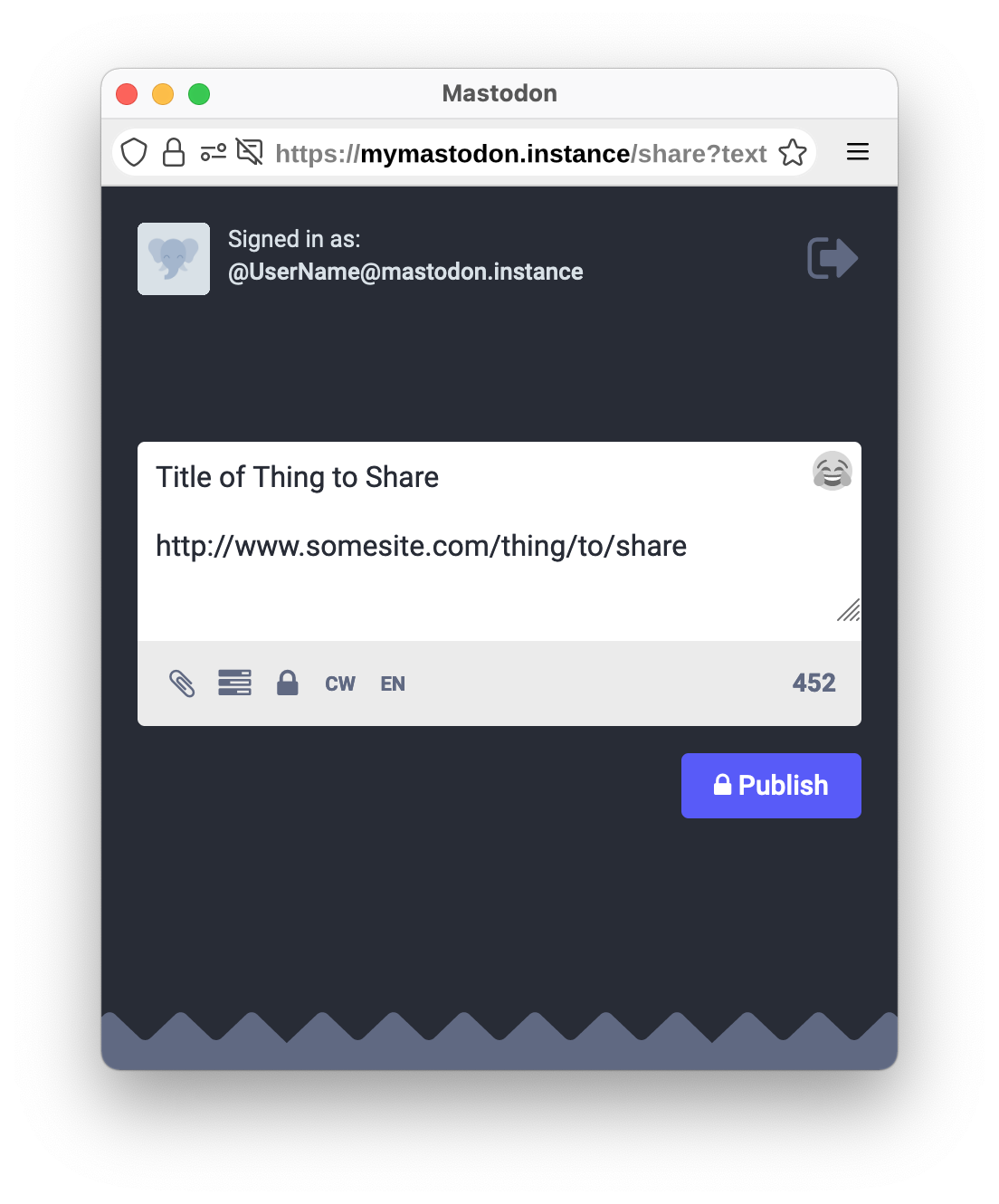
This script converts an HTML element with a specified class name into a share button. When a visitor presses it a pop-up/tab is created on the fly to ask them what server they are on, and gives them an option to remember it so when they return to your site they are not asked again.
HOW TO USE THIS SCRIPT
- LOAD THE SCRIPT
Include the “shar2fedi.js” script on your website, preferably in the <HEAD> block, but anywhere should still work.
a. LOAD USING CDN (RECOMMENDED)
The following will load the script using jsDelivr CDN:
<script type="text/javascript" language="javascript" src="https://cdn.jsdelivr.net/gh/randompenguin1/Share-to-Fedi@main/share2fedi.min.js"></script>
The server cache is updated every 12 hours, but any cached version of the script in a user’s browser won’t expire for a full week.
If you’re not planning on modifying the script and don’t mind not getting updates immediately, please use the CDN.
b. Download and install the script on any website:
<script type="text/javascript" language="javascript" src="/your/path/to/share2fedi.js></script>
c. Enqueue in WordPress
Download and install the script on your WordPress site, or link to the script using the CDN, by adding the following to your theme’s functions.php file:
wp_enqueue_script( 'share-on-mastodon-easily', 'path/to/share2fedi.js', '', '1.0', true );
Change “path/to/share2fedi.js” to either your local path, if you downloaded and installed the script locally, or to the CDN URL to load it remotely.
- MAKE A BUTTON
Include an element in your page with the class name “mastodon” or “activitypub” or “friendica” and it will be converted into a share button by the “share2fedi.js” script.
a. Customized Button
THERE IS A BUTTON BUILDER FOR THIS, or you can do it manually. Add an element to be turned into the Mastodon Share button:
<div class="mastodon" data-icon="white" data-color="black" data-size="48"></div>
Button Parameters:
There are currently parameters defined for two specific platforms and one protocol:
i. Mastodon
data-icon : black|fill-color|full-black|full-white|purple|white|wordmark-black-text|wordmark-white-text
data-color: black|white|midnight|blurple|darkblue|lightblue
data-size : (any numerical value, this is the pixel height of the button)
ii. ActivityPub
data-icon : wordmark-color|wordmark-black|wordmark-fill-color|wordmark-duotone
data-color: black|white|midnight|blurple|darkblue|lightblue
data-size : (any numerical value, this is the pixel height of the button)
iii. Friendica
data-icon : gold|black|fill-color|white|color|wordmark-duotone|wordmark-black|wordmark-fill-color|wordmark-white|wordmark-color
data-color: black|white|darkblue|blue
data-size : (any numerical value, this is the pixel height of the button)
NOTE: The ActivityPub one is generic and may or may not work with any given platform even if it supports sharing via the ActivityPub protocol. The reason is it assumes that the actual post composer format is the same as Mastodon’s but it may not be.
b. Bespoke Button
i. Link to this script through the CDN or download and install it on your website.
ii. Add an element to be turned into the share button with the class name “mastodon” like so:
<div class="mastodon">Share on Mastodon</div>
iii. Style the button as you please in your website’s stylesheet, for example:
    .mastodon {
	display: inline-block;
	font-size: 14px;
	color: white;
	background-color: lightblue;
	border-radius: 4px;
	border: 1px solid darkblue;
    }
- CUSTOMIZE SCRIPT(Optional)
Just about all the internals of the script are exposed and can be manipulated after the script has loaded.
For example, let’s say you want the share window to open in a new tab instead of a pop-up window, and you want it to ask visitors for their instance every time they visit your site instead of offering to store it. Somewhere AFTER the “share2fedi.js” script was loaded include a script block like this:
a. CHANGE SETTINGS
  <script type="text/javascript">
     share2.mastodon.settings.openapopup = false;
     share2.activitypub.settings.rememberme = false;
  </script>
There are also global default settings as fallbacks if a given platform does not define one or more of them:
  <script type="text/javascript">
  	share2.settings.titletoo = false;
  	share2.settings.openapopup = false;
  </script>
REFERENCE: ALL POSSIBLE SETTINGS
- queryobj : string : CSS queary to find share buttons. Any valid CSS
querySelectorAllwill work. -
titletoo : _true false_ : whether or not to include the webpage title in the shared text -
rememberme : _true false_ : whether to offer to remember the user’s instance/server or not. -
skipdialog : _true false_ : whether to skip the screen to enter instance/server url if remembered. -
openapopup : _true false_ : whether to open a pop-up window (true) or new tab (false). - cookiename : string : identifier for localStorage variable for remembered instance/server (e.g., platform name)
- targetpage : string : post compose page for platform (“share” for Mastodon, “compose” for Friendica, etc.)
- titlefield : string : name for title field in platform compose form (not all platforms have this field)
- bodyfield : string : name for the body text field in platform compose form.
- stylesheet : string : custom stylesheet for pop-up/new-tab window.
b. CHANGE COLORS
Let’s say you decide to add a color option for the holidays:
   <script type="text/javascript">
     share2.friendica.color.xmas = ['red','green','white'];
   </script>
Then you’d just need to include data-color="xmas" in your button element attributes. You could also redefine an existing color.
The three colors in the array represent the share button background color, rollover color, and border color. If you enter “transparent” or “none” or empty quotes “” no border will be added.
c. CHANGE LANGUAGE
The share window is constructed “on-the-fly” so all the text used in it can be changed as well. For example you could change it Spanish like this:
  <script type="text/javascript">
    share2.mastodon.text.heading = “Compartir en Mastodonte”;
    share2.mastodon.text.label = “URL de su instancia”;
    share2.mastodon.text.checkbox = “Recordar mi instancia en este sitio web”;
    share2.mastodon.text.close = “Cerrar”;
    share2.mastodon.text.share = “¡Cuota!”;
    share2.mastodon.text.whatis = “¿Qué es Mastodonte?”;
    share2.mastodon.text.srccode = “Mastodonte en GitHub”;
  </script>
Again, there are global defaults that act as fallbacks if a platform does not define one or more of them:
  <script type="text/javascript">
  	share2.text.heading = "Share To Your Network";
  	share2.text.label = "Your home server address:";
  	share2.text.checkbox = "Don't ask me again";
  </script>
REFERENCE: ALL CUSTOMIZABLE TEXT STRINGS
- heading : title on the pop-up window or new-tab.
- label : prompt before the text field.
- checkbox : label on the checkbox under the text field.
- close : label on the Close button in the pop-up window.
- share : label on the Share button in the pop-up window.
- whatis : link text for the platform project page
- link1 : URL to the platform’s project page.
- srccode : link text for the platform source code
- link2 : URL to the platform’s source code
- notes : (optional) Notice or instructions below buttons.
d. CHANGE BUTTON IMAGES
The script comes pre-loaded with the SVG images for all the official Mastodon, ActivityPub, and Friendica logo and icon variations. But if you wanted to define something else you could do it like this:
  <script type="text/javascript">
    share2.activitypub.logo['dot-dot-dot'] = '<svg width="75" height="75".....></svg>
  </script>
IMPORTANT: ALL images must be SVG!
e. ADD BUTTONS & POPUPS FOR OTHER PLATFORMS
The ActivityPub share buttons may not work with every platform that uses the protocol. You can add support for additional platforms either by downloading and editing the script or by enqueuing a custom script after it to extend it.
All you need to do to extend the script is to create a new instance of the Share2Fedi class under the share2 object. There are two ways instantiate a new platform:
  share2.platform_name = new Share2Fedi(
  	{	// settings
  		'queryobj'	: '.buttonclass',
  	},
  	{	// text

  	},
  	{	// icons

  	},
  	{	// color

  	},
  );
Alternatively you can just create it as an empty instance:
share2.platform_name = new Share2Fedi();
And then set whichever parameters you need to customize using dot notation:
  share2.platform_name.settings.queryobj = ".buttonclass";
  share2.platform_name.icons.button = '<svg width="50" height="50.../svg>';
  share2.platform_name.color.button = ['black','gray','white'];
That’s pretty much the bare minimum you’d have to define. The className of the share button(s) to target, the icon SVG for the button, and one color set for the button background (main color, rollover color, border color). Colors can be defined in any valid way. If you don’t want a border on the button either enter “transparent”, “none”, or empty quotes “” and no border will be added.
There are some special entries in the “icons” section:
- logo : (required) this designates the logo SVG to be used on the pop-up window/new tab. It can be the same as one of the images used on a button. If there is no logo defined it will just use the Fediverse icon.
- fill-color : (optional) if you’ve included an icon SVG that uses
fill="currentColor"this will ensure it can inherit the font color. - wordmark-fill-color : (optional) if you’ve included word SVG that uses
fill="currentColor"this will ensure it can inherit the font color and that the button will be wide enough for the word(s).
Generally speaking, you can duplicate the “black” variant of your image and add fill="currentColor" to the <svg...> portion, then add fill="inherit" to the <path...> and it should work to inherit the font color.
Note that “currentColor” only works for inline SVG images. It will not work for any SVG image that is loaded as an image either in HTML or CSS.
f. FULL CUSTOMIZATION
If you download the script to do a local installation you can, of course, customize it any way you like. Including all of the aforementioned customization, which could be done in the “some.js” script if you liked.
You can also completely customize the pop-up window to match the look and feel of your website.
To change pop-up styles globally use share2.settings.stylesheet and to do it for a specific platform use share2.platform_name.settings.stylesheet.
Note that this will completely replace the default stylesheet with your own, so you need to define everything yourself in it. For reference here is the default stylesheet:
  body {
  	max-width:450px;
  	padding:0px 20px;
  	margin:0px auto;
  	background-color:#1f232b;
  	font-family:roboto,Arial,sans-serif;
  	font-size:13px;
  	color:#9baec8;
  }
  h1 {
    font-size:24px;
    line-height:1.48;
    font-weight:600;
    color:#d9e1e8;
    padding-bottom:35px;
    border-bottom:1px solid #303643;
    text-align:center;
  }
  svg {
    height:42px;
    vertical-align:middle;
    margin-right:10px;
  }
  strong {
    color:#d9e1e8;
    font-weight:500
  }
  textarea, input[type="text"] {
    box-sizing:border-box;
    resize:vertical;
    padding:10px;
    outline:0;
    width:100%;
    border:1px solid #282c37;
    border-radius:4px;
    background:#131419;
    color:#d9e1e8;
    transition:background-color 300ms ease,border 300ms ease;
  }
  textarea:focus, input:focus {
    background-color:#1d1f26;
    border:1px solid #2b90d9;
  }
  button {
    display: block;
    width:45%;
    border: 0;
    border-radius: 4px;
    background: #595aff;
    color: #fff;
    font-size: 18px;
    line-height: inherit;
    height: auto;
    padding: 10px;
    text-decoration: none;
    text-transform: uppercase;
    text-align: center;
    box-sizing: border-box;
    cursor: pointer;
    font-weight: 500;
    outline: 0;
    margin: 50px 0px;
  }
  #close {
  	float:left;
  	background:#df405a;
  }
  #close:hover {
  	background:#e3566d;
  }
  #share {
  	float:right;
  	background:#595aff;
  }
  #share:hover {
  	background:#6364ff;
  }
  #notes {
  	text-align:center;
  	font-style:italic;
  }
  footer {
  	border-top:1px solid #303643;
  	padding:1rem 0;
  	width:100%;
  	display:flex;
  	flex-direction:row;
  	align-items:center;
  	justify-content:center;
  	flex-wrap:wrap;
  }
  form::after {
  	content:'';
  	clear:both;
  	display:block;
  }
  footer section {
  	margin:.5rem 1rem;
  }
  a {
  	color:#9baec8;
  }
Keep in mind your custom stylesheet will need to be in a single escaped string.
NOTES:
-
If you are defining new keywords with dashes in the names you need to do it inside quotes (as shown above for “Change Button Images”) because trying to define that name in dot notation will throw an error.
-
Your link/button elements does not have to have an href, the script will get the current window location if no usable href is found on the element itself.
-
Do not encode the URL before sending it to this script, it will result in an unusable link.
-
Button Builder translations were done with Google Translate, they may not be accurate. If you can fix any of them please do and submit a pull request for your changes.
CODE:
Get the code for this project, submit bugs, issues, suggestions, fork it, whatever!
https://github.com/randompenguin1/Share-to-Fedi
Changelog
- Changed title to “Share to Fedi JS” to distinguish it from other projects (like “Share2Fedi”), but not changing repository name.
Version 1.0
- Initial release, attaches click event listener to any HTML element with ‘mastodon’ class name to launch instance question pop-up window.
Contributors
Author: Random Penguin <@randompenguin@friendica.world> Author URI: https://randompenguin1.github.io
License:
GPLv3 - License URI: http://www.gnu.org/licenses/gpl-3.0.html
The Mastodon logos and icons are the property of Mastodon gGmbH, a German non-profit company.
This is not an official project of any Fediverse platform. Fediverse icon designed by Dr. Quadragon and Eukombos.
Mastodon logo and icons are the property of Mastodon gGmbH, a German non-profit company and Mastodon, Inc. a 501(c)(3) non-profit entity in the United States.
ActivityPub logo released under a public domain CC0 1.0 license by W3C Social Web Working Group.
Friendica logo and icons created by the Friendica Community.